Codex installs on Windows with one PowerShell line and works without any coding, but right after the install there's a catch: the window you installed from can't find it. I filmed the whole setup on a clean Windows 11 machine for my YouTube channel, Khadim Labs, on Codex CLI 0.166.0: the install, that catch, the sign-in, the sandbox prompt, and two real jobs in plain English. This page has every command and every message I saw, plus what OpenAI's own docs say about the parts the video skips. Steps and prices are as of 2 November 2026.
What is Codex?
Codex is OpenAI's coding agent. The Codex CLI "runs locally on your computer": you open it in a folder, type what you want, and it reads files, edits them and runs commands to get there. It comes in three forms:
| Form | Where it runs | Good for |
|---|---|---|
| Codex CLI | Your terminal, in the folder you choose | This guide: files on your own PC |
| ChatGPT desktop app (Codex mode) | A normal Windows app | The same agent without a terminal |
| Codex cloud | OpenAI's servers | Longer tasks you check on from the web or your phone |
This page is about the CLI. The app gets its own section near the end.
Is Codex free? What plan do you need?
Codex in the CLI needs a paid ChatGPT plan or an API key. The first screen of the CLI says "Usage included with Plus, Pro, Business, and Enterprise plans" under "Sign in with ChatGPT". These are the plans on OpenAI's Codex pricing page on 2 November 2026, in US dollars:
| Plan | Price per month | Codex |
|---|---|---|
| Free | $0 | Limited, in the desktop app only, "subject to rollout" |
| Go | $8 | Limited, in the desktop app only, "subject to rollout" |
| Plus | $20 | Web, CLI, IDE extension and iOS |
| Pro | $100, $200 or $500 | Included, with no five-hour limit |
| Business | $20 per user billed yearly, $25 billed monthly (2+ users) | Included |
OpenAI doesn't say whether a Free account can use the CLI. If you'd rather pay per use, choose "Use an OpenAI API key" at sign-in and Codex bills standard API prices instead of a plan.
Usage isn't a fixed message count. OpenAI says it "depends on the model used, size and complexity of your tasks, and whether you run them locally or in the cloud", and local and cloud work share one allowance. Type /status inside Codex to see what's left.
What do you need to run Codex on Windows?
From OpenAI's Windows page:
- Windows 11 is "Recommended" and the "Best baseline for Codex on Windows."
- Windows 10 version 1809 or newer is "Best effort."
winget"should be available."- A ChatGPT plan from the table above, or an OpenAI API key.
You don't need WSL or Node.js. OpenAI says to "Use the native Windows sandbox by default" and to pick WSL only when you need Linux tools. The repo's older install page still says "Windows 11 via WSL2"; the docs site and the README are newer and give the native installer.
How do I install Codex CLI on Windows?
-
Right-click Start (or press
Win + X) and open Terminal or Windows PowerShell. The prompt should start withPS. -
Paste OpenAI's installer line from the CLI docs and press Enter:
powershell -ExecutionPolicy ByPass -c "irm https://chatgpt.com/codex/install.ps1 | iex"irmdownloads the install script andiexruns it.-ExecutionPolicy ByPasslets that one script run without changing your PC's script policy. -
Wait. Mine took 71 seconds and printed this:
==> Installing Codex CLI ==> Detected platform: Windows (x64) ==> Resolved version: 0.166.0 ==> Downloading Codex CLI ==> PATH updated for future PowerShell sessions. ==> Current PowerShell session: codex ==> Future PowerShell windows: open a new PowerShell window and run: codex Codex CLI 0.166.0 installed successfully. Start Codex now? [y/N]: -
Type
n, close the window, and open a new one. Then check the install:codex --versionMine printed
codex-cli 0.166.0.
The installer puts codex in %LOCALAPPDATA%\Programs\OpenAI\Codex\bin and adds that folder to your user PATH, so it never needs admin rights. If you already have Node.js, npm install -g @openai/codex works too.
Why does Windows say 'codex' is not recognized?
Right after the install, I typed codex --version in the same window and got this:
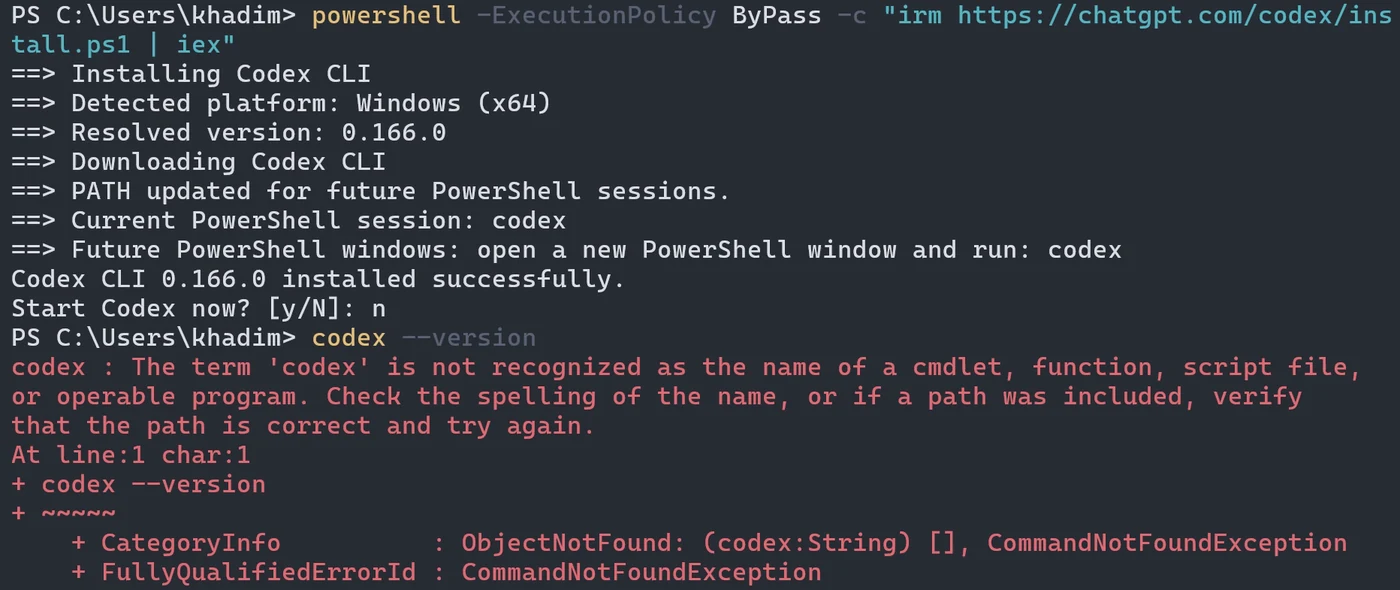
codex : The term 'codex' is not recognized as the name of a cmdlet, function, script file, or operable program.
Check the spelling of the name, or if a path was included, verify that the path is correct and try again.
Nothing is broken. The install line starts a second PowerShell (that's the powershell -c part) and runs the installer inside it. The installer updates PATH, the list of folders Windows searches for programs, in two places: your saved user settings, which new windows read, and that second PowerShell, which is what its line "Current PowerShell session: codex" refers to. The second PowerShell closes when the install ends, and the window you typed into still has the old list.
The fix is to close that window and open a new one. That's all I did in the video.
If a brand-new window still says not recognized:
-
A terminal inside VS Code or another editor takes its PATH from the editor, so quit and reopen the editor itself.
-
Check that the folder is on your user PATH:
[Environment]::GetEnvironmentVariable('PATH', 'User') -split ';' | Select-String 'OpenAI'If that prints nothing, add it, then open a new window:
$p = [Environment]::GetEnvironmentVariable('PATH', 'User')
[Environment]::SetEnvironmentVariable('PATH', "$p;$env:LOCALAPPDATA\Programs\OpenAI\Codex\bin", 'User')
This saves your user PATH with any
%VARIABLE%entries written out as full paths. They keep working, and OpenAI's installer does the same thing (openai/codex#55931). If you'd rather keep them as they are, add the folder by hand: runrundll32 sysdm.cpl,EditEnvironmentVariables, select Path under your user variables, click Edit, then New, and paste the folder. -
If you're in Command Prompt (no
PSat the start of the line),irmwon't work there either. Open PowerShell and run the installer from it.
How do I sign in to Codex?
Make a folder for your first project, move into it and start Codex:
mkdir Documents\codex-test
cd Documents\codex-test
codex
The first screen offered four ways in:
| Option on screen | What it says |
|---|---|
| Sign in with ChatGPT | "Usage included with Plus, Pro, Business, and Enterprise plans" |
| Sign in with Device Code | "Sign in from another device with a one-time code" |
| Use an OpenAI API key | "Pay for what you use" |
| Use Amazon Bedrock | "Connect using your AWS credentials" |
Pick Sign in with ChatGPT. Your browser opens on an OpenAI page, you log in, and the browser hands the login back to the terminal. On a machine without a browser, choose Device Code instead. Codex stores the login in %USERPROFILE%\.codex\auth.json or the Windows credential store, according to the auth docs, so treat that file like a password.
What is the Codex sandbox prompt on Windows?
The first time Codex starts on Windows, it asks to set up its sandbox, the fence that keeps it inside your project folder and off the internet unless you allow it. The prompt reads "Set up the Codex agent sandbox to protect your files and control network access" and offers:
- "Set up default sandbox (requires Administrator permissions)", the one to pick
- "Use non-admin sandbox (higher risk if prompt injected)", for PCs where you can't approve admin prompts
- Quit

I chose the default. Windows showed one User Account Control prompt, I clicked Yes, and about 25 seconds later Codex said "Sandbox ready". OpenAI notes that commands inside this sandbox still run without admin rights; the approval is only for setting it up.
If you clicked No on the admin prompt by mistake, Codex says "Couldn't set up your sandbox with Administrator permissions" and offers the non-admin sandbox instead. You can redo the setup later with /setup-default-sandbox, which only shows up while Codex is using that weaker sandbox.
On newer Windows 11 builds (24H2 build 26100.9278 or 25H2 build 26200.9278) there's a third sandbox, MXC, that needs no admin setup at all. The desktop app picks it automatically for personal accounts; in the CLI you turn it on in %USERPROFILE%\.codex\config.toml:
[features]
prefer_mxc = true
Using Codex with no coding: two tasks I ran
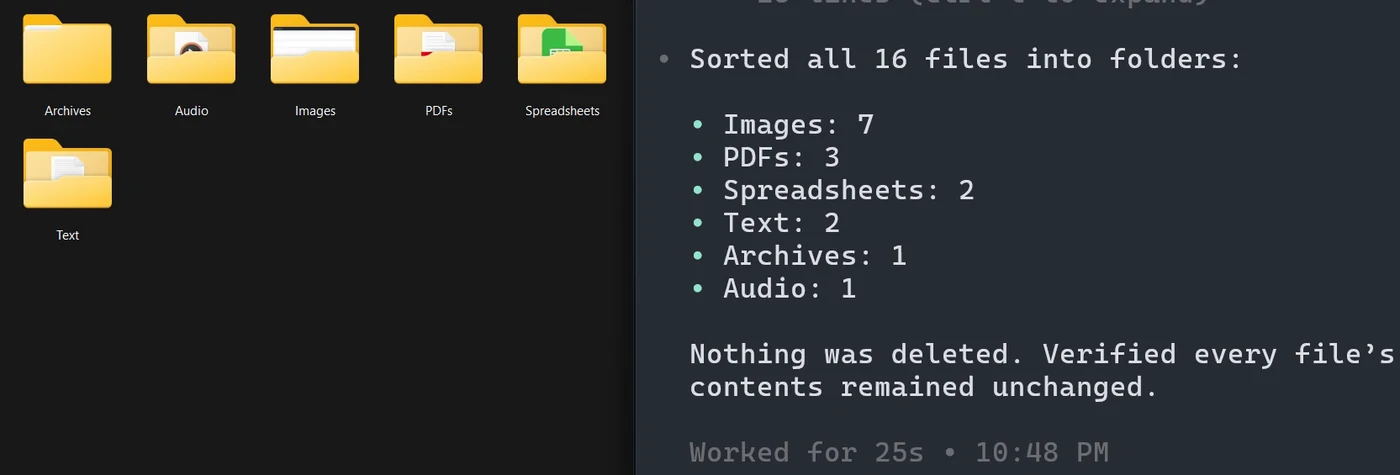
For the first job I copied in the same messy folder I used in my Claude Code video: 16 files, photos, PDFs, spreadsheets and a voice memo all mixed together. I typed:
Sort these files into folders by type, and don't delete anything.
Codex made six folders and moved every file. The footer said "Worked for 25s". I checked every file's SHA256 hash before and after, and all 16 were there, unchanged. For comparison, Claude Code took about two minutes on that same folder in my Claude Code Windows guide. That's one run each, on different days, so don't read it as a benchmark.
For the second job I put a CSV of a month's expenses in the folder and typed:
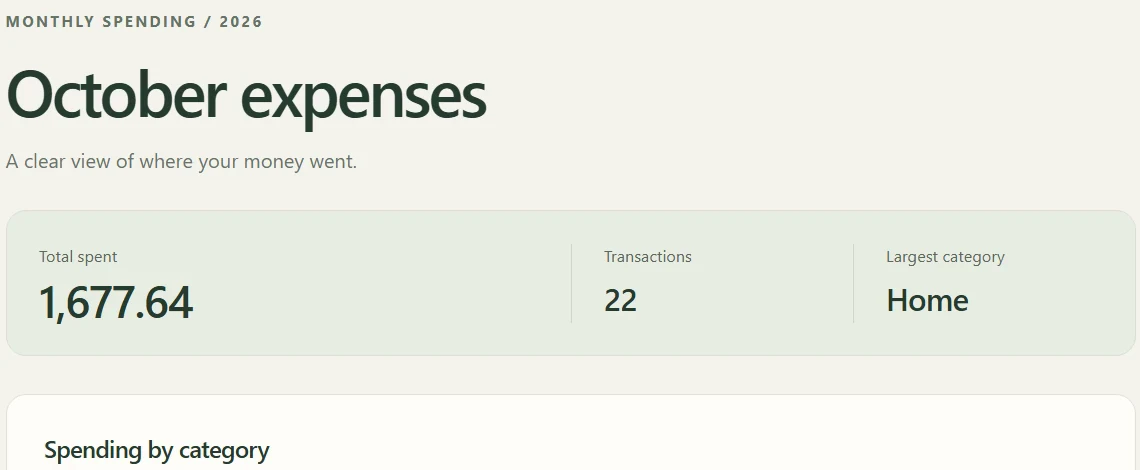
Make a simple web page that shows my October expenses as a chart. Keep it to one HTML file in this folder.
It took 1 minute 35 seconds and made one HTML file: a chart, the month's total and a fold-out list of all 22 expenses. I added the CSV up by hand, and the total on the page, 1,677.64, was right. (The expenses were made up for the video.)
The words "one HTML file" are there for a reason. When I asked for just "a web page", Codex also created an .openai\hosting.json file holding a project ID tied to the signed-in account. Asking for one file in the folder kept it to that file.
Open the result yourself, too. In a test run I asked Codex to open the page in my browser and it hit an access denied error: the sandbox blocked it from launching the browser. Double-click the file in File Explorer instead.
What can Codex do without asking? The /permissions menu
Type /permissions inside Codex. In 0.166.0 the menu is called "Update Model Permissions" and has four presets. The names on screen differ from OpenAI's docs, which call the default "Auto", so go by what your screen says:
| Preset (as shown in 0.166.0) | What it allows, in the menu's words |
|---|---|
| Ask for approval | "Read and edit workspace files and run commands, with approval required for internet access or edits outside the workspace" |
| Approve for me | "Only ask for actions detected as potentially unsafe" |
| Full Access | "Use with caution: Codex can edit files outside this workspace and access the internet without approval" |
| Read Only | Reads your files; asks before any edit or internet access |
Leave it on Ask for approval while you learn. OpenAI's docs warn that full access "means Codex is not limited to your project directory and might perform unintentional destructive actions that can lead to data loss." The old /approvals command is gone; /permissions replaced it.
Other commands worth knowing on day one, from the command list: /model switches the model and reasoning effort, /new starts a fresh chat, /init writes an AGENTS.md file of project notes that Codex reads before every task, /status shows your usage, and /quit exits.
Can I use Codex on Windows without the terminal?
Yes. Codex is a mode inside the ChatGPT desktop app, which OpenAI says "runs natively on Windows using PowerShell and the Windows sandbox, or you can configure it to run in Windows Subsystem for Linux 2 (WSL2)." Get it from the Microsoft Store, or with winget install --id 9PLM9XGG6VKS -s msstore. If you already have the CLI, codex app opens the desktop experience. Free and Go plans get their limited Codex here, not in the CLI.
How do I update or uninstall Codex on Windows?
To update, run the same install line again; it prints "Updating Codex CLI from" your old version to the new one. codex update also works when your release supports self-update.
OpenAI doesn't document an uninstall for the standalone CLI. What it installs is the %LOCALAPPDATA%\Programs\OpenAI\Codex\bin folder, its entry in your user PATH, and runtime files under %USERPROFILE%\.codex, which also holds your settings and login. Removing those by hand is my inference, not an official procedure. For an npm install, npm uninstall -g @openai/codex does it.
Is Codex safe to use on Windows?
With the default sandbox and Ask for approval, it's a sensible place for a beginner to start. By default Codex has no network access and can only write inside the folder you started it in. Start it in a folder you made for the job, never in your whole user folder, and read what it proposes before you approve. Don't paste passwords or API keys into the chat.
If you'd like an agent like this set up for your team's real work, that's part of my AI agent consulting. And if you're choosing between the two, my Claude Code on Windows guide walks through the same setup for Anthropic's agent.
Frequently asked questions
Is Codex free?
Not in the CLI, as far as OpenAI documents it. The CLI's sign-in screen says usage is included with Plus, Pro, Business and Enterprise, and Plus costs $20 a month. OpenAI's pricing page gives Free and Go limited Codex in the ChatGPT desktop app only, subject to rollout. You can also sign in with an API key and pay per use.
Do I need WSL to run Codex on Windows?
No. OpenAI's Windows docs say to use the native Windows sandbox by default and to choose WSL2 only if you need Linux tools or your work already lives there. The GitHub repo's install page still lists Windows 11 via WSL2, but the docs site and the README both give the native installer.
Do I need admin rights to install Codex on Windows?
Not for the install. The standalone installer writes to your own user profile and your user PATH. The default sandbox asks for one Windows admin approval the first time you start Codex; if you decline, Codex falls back to a non-admin sandbox that OpenAI says carries more risk.
Why does Windows say codex is not recognized after installing?
You're still in the window you installed from. The installer runs in its own PowerShell process and updates PATH for future windows only. Close the window, open a new one and run codex --version. If a new window still fails, check that the OpenAI\Codex\bin folder inside %LOCALAPPDATA%\Programs is on your user PATH.
Can I use Codex without the terminal?
Yes. Codex is also a mode inside the ChatGPT desktop app, which runs natively on Windows with PowerShell and the Windows sandbox. Install it from the Microsoft Store or with winget install --id 9PLM9XGG6VKS -s msstore. That winget command installs the app, not the CLI.
Is Codex faster than Claude Code?
On one task, yes: Codex sorted my 16-file test folder in 25 seconds, and Claude Code took about two minutes on the same folder in my earlier video. That is one run each on different days, not a benchmark, and speed depends on the model, the plan and the task.